
What is Safari’s cache?
The cache is a temporary store: Safari saves images, scripts and other parts of web pages on your Mac so that pages you have visited load faster next time. That saves data and time, but the files quietly stay on your drive.
Why empty the cache?
- Fix problems: If a page shows outdated content, a broken layout or doesn’t load properly, an empty cache often helps.
- Privacy: The cache holds images and data from the pages you visited. Anyone with access to your Mac can read where you have been from it.
- Storage: The cache grows over time and takes up space on your drive.
Empty Safari’s cache manually
In Safari, emptying just the cache without touching your history and cookies only works through the hidden Develop menu:
- Open Safari › Settings › Advanced and switch on “Show features for web developers” (in older versions: “Show Develop menu in menu bar”).
- In the menu bar, choose Develop › Empty Caches. You can also press ⌥ ⌘ E.
- Then reload your Safari windows or restart Safari.
Menu names differ depending on your Safari and macOS version. The keyboard shortcut is shown next to “Empty Caches” in the Develop menu. According to Apple, the command empties the network cache and other Safari caches.
Alternatively, remove stored website data under Settings › Privacy › Manage Website Data …. Besides the cache, that also removes cookies, and you will be signed out of websites. The details are in the guide Delete Safari cookies automatically.
Delete Safari cache automatically with Bushfire
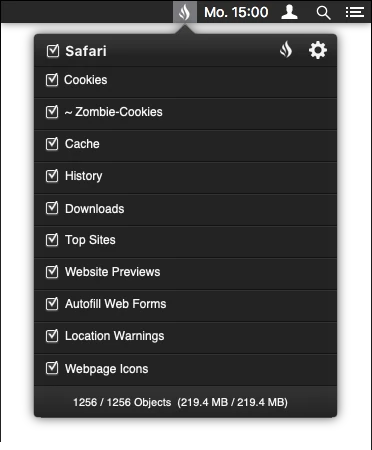
Safari has no setting to empty the cache when you quit, and the Develop menu route is manual work every time. Bushfire takes care of it: the moment you quit Safari, the app deletes the cache and any other categories you selected.
- deletes automatically when you quit Safari
- choose categories individually, for example delete the cache but keep cookies
- also history, downloads, Top Sites, website previews and more
- free, open source, no account
- Download Bushfire and drag it into your Applications folder.
- Start Bushfire. On first launch on macOS 15 or later you need to allow the app once – the guide shows how.
- In Bushfire’s menu, switch on the Cache category.
- Done: the next time you quit Safari, the cache is empty.
Good to know
- Pages load more slowly afterwards: After emptying, Safari has to download everything again. That’s normal and settles down with your next browsing.
- Nothing gets deleted? If Safari is connected to iCloud, or Bushfire lacks permission for the Library folder, nothing can be deleted. Support shows how to fix that.
- Clean up more: Your history is best deleted automatically, too – see the guide Delete Safari history automatically.